Introduction and Plugin Setup
- The Obsidian Tracker plugin serves as a tool for tracking habits, weight, and work, allowing users to maintain local data while replacing paid tracking applications 0s.
- Users are expected to have foundational knowledge of YAML, Obsidian, journaling, and templates before utilizing the plugin 15s.
- Installation is performed via the community plugins menu, where users should verify that the date format in the plugin settings aligns with their preferences 25s.
Habit Tracking Configuration
- To track habits, data must be annotated within notes, with daily notes serving as the recommended location for consistent logging 42s.
- Automation is achieved by adding specific metadata headers to the daily note template, such as a "meditation" field 55s.
- Habit data is recorded in the front matter of daily notes using a binary system, where "1" indicates the habit was performed and "0" indicates it was not 1m12s.
Query Structure and Parameters
- Queries for the tracker plugin are initiated using a code block labeled "tracker" and are structured into three sections: collecting data, target evaluation, and rendering/output 1m35s.
- The "search type" parameter defines where the plugin looks for data, with "front matter" being the primary method for tracking 1m50s.
- The "search target" parameter specifies the exact header within the front matter that the plugin should monitor, such as "meditation" 2m6s.
- Limiting the search scope is necessary to prevent the plugin from scanning the entire vault, requiring the user to define specific folders or locations for the data 2m18s.
Calendar Visualization and Customization
- To configure a habit tracker query, the folder path is specified as "Journal/daily" to target the relevant daily notes 0s.
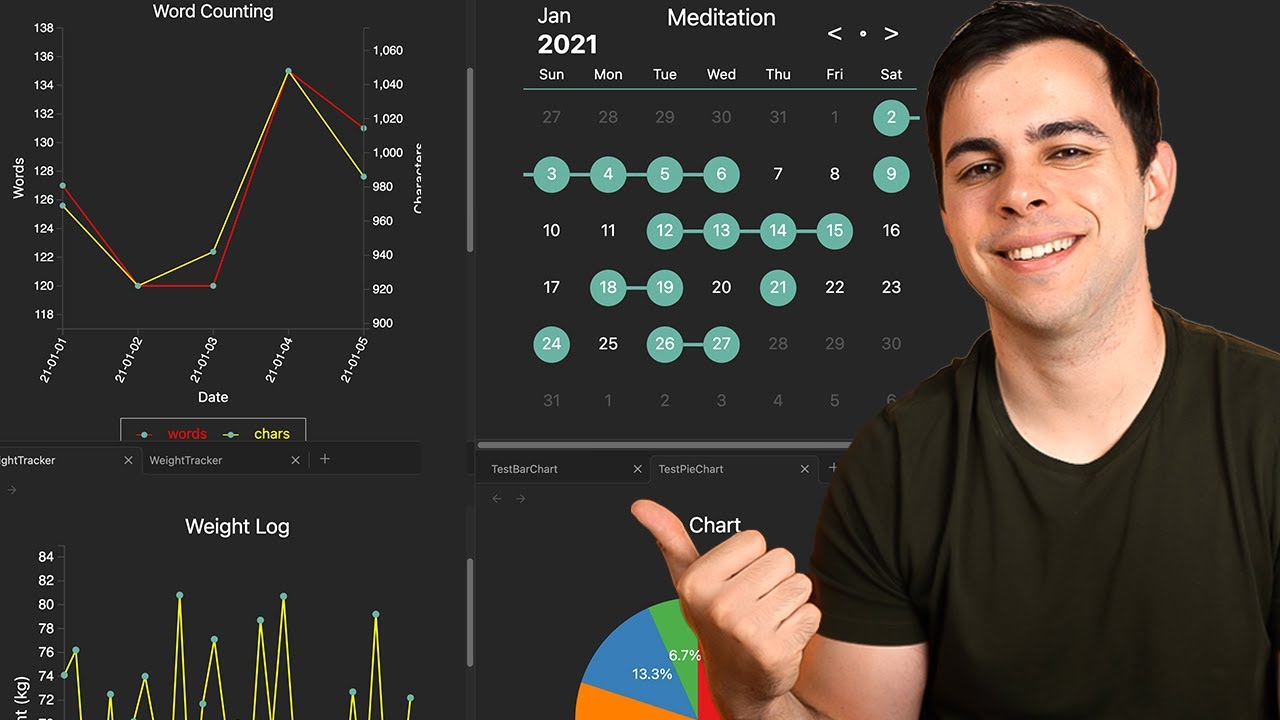
- The "month" view is selected as the output type for the query, which provides a calendar interface suitable for tracking binary "yes or no" habits like meditation 12s.
- Preview mode, accessed via command-e, allows users to visualize the calendar, track streaks, and navigate between different months 30s.
- A "data set name" parameter can be added to the query to provide a custom title, replacing the default "Untitled" label 1m15s.
- Specific date ranges can be defined using "start date" and "end date" parameters to limit the rendered results to a particular timeframe 1m35s.
- The calendar display can be customized to start weeks on Monday by adding the "start week on Monday" parameter 1m55s.
- The color of the calendar markers can be changed using the "color" parameter, which supports named colors like "steel blue" as well as hex codes 2m8s.
- Adding "mode: annotation" and an "annotation" parameter allows for the inclusion of emojis within the calendar view 2m25s.
- The "fixed scale" parameter adjusts the size of the calendar display, with values like 1.3, 0.8, or 1.5 modifying the visual scale 2m45s.
Habit Summary and Behavioral Insights
- Multiple queries can be combined to enhance the functionality of the habit tracker plugin 3m5s.
- A summary query can be inserted into an Obsidian template to provide a detailed overview of habit streaks, which is useful for tracking simple yes-or-no activities like meditation, reading, or yoga 0s.
- Visualizing habit progress serves as a motivational tool for achieving personal goals 35s.
- According to the book Atomic Habits by James Clear, it takes an average of 66 days for a habit to become second nature, at which point it becomes easier to maintain than to stop 48s.
- The tracking process is designed to maintain a habit chain for 66 days, after which tracking is typically discontinued 1m5s.
Book Summaries and Knowledge Integration
- Shortform is a book summary platform that provides detailed insights and connects concepts across different books, which can be used to create connections within an Obsidian vault 1m15s.
- Users can utilize Shortform to reinforce information from books they have already read or to discover new titles, such as The Willpower Instinct, Drive, and Tiny Habits 2m6s.
Weight Tracking Implementation
- A weight tracker can be implemented in Obsidian by adding a "weight" field to the YAML header of daily note templates 2m45s.
- For existing daily notes, the weight field must be added manually to reflect data 3m0s.
- A Weight Tracker note can be created using a front matter search query that targets the weight data stored within the daily notes folder 3m25s.
- Visualizing data through line graphs or bar charts is more effective for tracking metrics like weight than using a calendar view. 0s
- Users can integrate smart scales, such as the Renpho brand, to simplify the process of logging daily weight data into Obsidian. 15s
- Tracker queries allow for customization, including setting start and end dates, changing visualization types between line and bar, and adding titles to graphs. 35s
- Graphs can be further customized by labeling the X and Y axes, specifying units of measurement, and adjusting the line color for better contrast. 55s
- Adding a summary query provides essential statistics, such as average values, which helps account for natural fluctuations in data like weight. 1m20s
Work Productivity Tracking
- A work tracker can be implemented using the Pomodoro method to monitor daily productivity levels. 1m42s
- By creating a new note and updating the search target to "pomodoros," users can generate visual representations of their work sessions across multiple daily notes. 1m55s
- The Pomodoro tracker can also include a summary query to display minimum, maximum, median, and average work statistics. 2m35s
Automated Word Count Tracking
- A word tracker can be automated by using a "file meta" search type, which allows the system to count words directly from the file metadata without manual input. 2m45s
- A word count tracker can be configured by setting the search target to "num words" and specifying the "Journal daily" folder to ensure the data is pulled from the correct location 0s.
- Customization options for the word counter include adding a title, labeling the y-axis, and selecting a specific line color, such as red 25s.
- The word tracker is fully automated, meaning it automatically detects and includes data from newly created notes containing text 45s.
- A separate query can be used to calculate and display the total number of words written across the entire Obsidian vault 1m5s.
Mood Tracking and Combined Data Visualization
- A mood tracker can be implemented by searching for "mood" headers within the front matter of daily notes 1m25s.
- Mood values are typically populated on a scale of one to five, where five represents "great," four is "good," three is "okay," two is "bad," and one is "terrible" 1m45s.
- Adjusting the start and end dates in the tracker settings helps improve the visual presentation of the data 2m10s.
- Multiple data sets, such as Pomodoro counts and mood ratings, can be displayed in a single chart by including both targets in the search query 2m25s.
- Visual clarity for combined charts can be enhanced by assigning different line colors, setting y-axis locations to the left or right, adding labels, and enabling a legend 2m45s.
- Bundling multiple habits into a single tracker allows for the analysis of connections between different data points 3m15s.
Dashboard Management and Conclusion
- Trackers can be added to a dashboard by creating a new section and using the "fixed scale" setting to adjust the size of the charts for better layout management 3m30s.
- Additional rows can be added to the dashboard as desired 0s.
- Detailed instructions on how to set up the dashboard are available in a separate video 0s.
- Shortform is acknowledged as the sponsor of the video 0s.