

Introduction to Headers and Footers
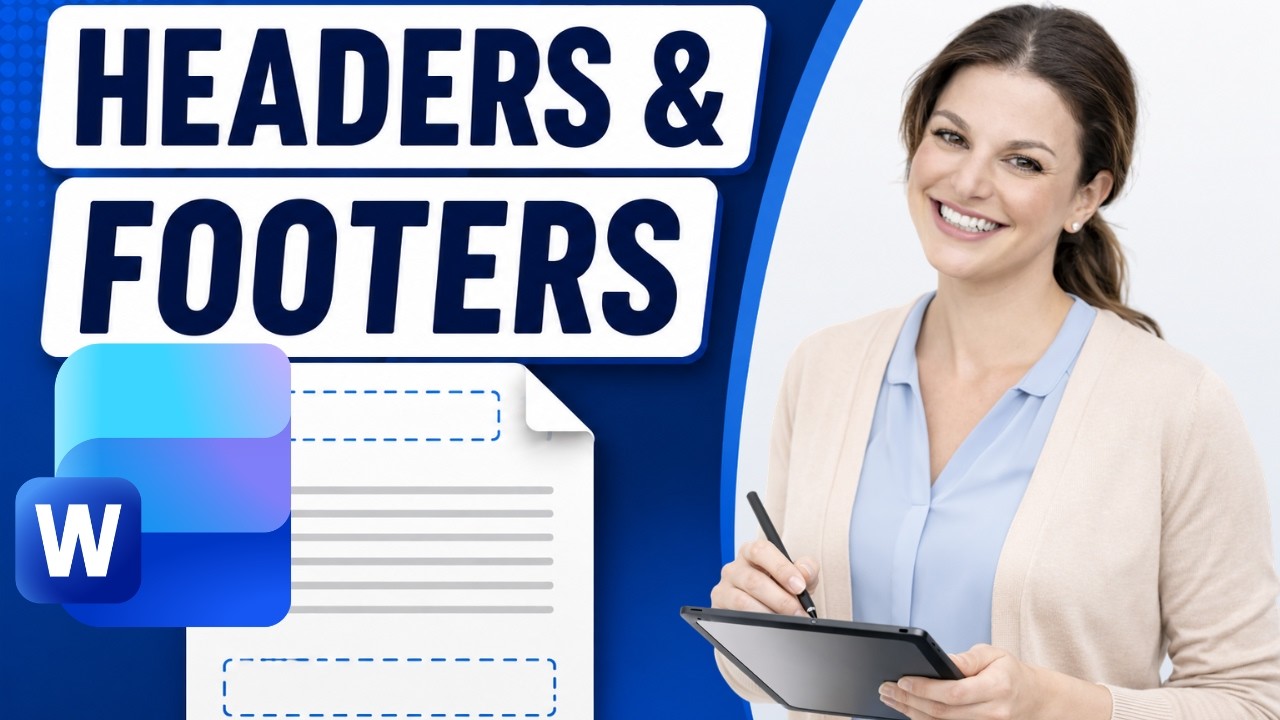
- Headers and footers in Word are features that allow users to add content to the top and bottom of pages, such as document titles, company names, logos, dates, and page numbers, which can repeat automatically on every page of a document 10s.
- There are two ways to open the header or footer area in a Word document: by double-clicking at the top of the page, which highlights the header area with a dashed border, or by selecting the insert tab and then header and footer in the ribbon 42s.
Editing and Formatting Headers and Footers
- Once inside the header or footer, users can edit the text, change the font, adjust the size, bold, italicize, or change the color, and use preset tabs to align text to the left, center, or right 2m6s.
- A common professional header may include the company name on the left, the document title in the middle, and the date on the right, while the footer has similar rules and additional options for text placement 2m6s.
Adding and Customizing Page Numbers
- Page numbers are a common element in headers and footers, and can be inserted using the page number button in the header and footer tab, which offers various locations and styles for the page number 2m6s.
- The page number is a live field that updates automatically on every page of the document, and users can change the style or format of the page number, such as using Roman numerals, by selecting the page number button again 2m6s.
Special Header and Footer Options
- To exclude the header and footer from the first page of a document, users can click on the options tab and select "different first page", which creates a separate header and footer for the first page that is independent from the rest of the document 2m6s.
- To create a document with a blank first page and a specific header on the remaining pages, the first page can be left blank and the header can be inserted on the subsequent pages, which will appear on every page except the first one 10s.
- A powerful option in Microsoft Word is to have different headers for odd and even pages, which can be achieved by checking the box in the options group, allowing for separate headers for odd and even numbered pages, similar to professionally printed books 1m30s.
Creating Section Breaks for Independent Headers and Footers
- To have completely different headers and footers in different parts of the same document, sections can be created by inserting a section break before the page where the new header is desired, and then clicking on the header and turning off the "link to previous" option to make it independent 2m6s.
Adding Images and Graphics to Headers
- Headers are not limited to text, as images can also be inserted, such as a company logo, by selecting "insert" and then "picture", and the image can be resized and positioned using the tab key 4m10s.
- When inserting an image into a header, the text wrapping options can be adjusted by selecting the image, clicking on "layout options", and then selecting "through", which allows the cursor to be placed anywhere in the header to add text 5m20s.
Adding Shapes and Lines to Headers
- Additional elements, such as shapes and lines, can be added to the header by selecting "insert", "shapes", and then the desired shape, and the color, width, and position of the shape can be adjusted 6m40s.
Managing Margins for Headers and Footers
- It is essential to be mindful of the margin settings when creating headers to ensure that the content is properly aligned and does not overlap with the body of the document 7m30s.
- Headers and footers in Microsoft Word are positioned inside the page margins, and if the header content is getting cut off, adjusting the margins can resolve the issue 0s.
- To adjust the margins, the layout option can be selected, and then the margins option can be chosen, which allows for custom margin settings 6s.
- The custom margins option enables users to select the distance from the edge of the page for both the header and the footer, providing more control over the placement of these elements 10s.