
Evolution of Notion Project Management
- Mastering the relations feature is presented as the key to unlocking 80% of Notion's capabilities and building complex systems like a second brain. 0s
- A common beginner approach involves creating a master project page with individual pages for each project, which leads to clutter and a lack of organizational features like deadlines or status tracking. 10s
- An intermediate approach uses databases to track project status, dates, and URLs, but often results in tasks and notes from unrelated projects appearing together, causing confusion and distraction. 55s
- The effective method involves using a dashboard where raw databases for projects, tasks, and notes are connected, ensuring that only information relevant to a specific project is displayed when that project page is opened. 1m35s
Implementing Database Relations
- By default, Notion databases exist in separate silos, meaning they cannot share information with one another. 2m6s
- The relations feature allows different databases to connect and share information, enabling users to filter data so that only relevant items appear in specific contexts. 2m15s
- To implement a relation, a user must add a new property to a database, select "relation" as the property type, and choose the database they wish to connect to. 2m45s
- When creating a relation, Notion typically prompts the user to show the connection in the target database as well, which is generally recommended. 3m5s
Establishing Bidirectional Connections
- To establish a connection between databases, select the "add property" option, choose "relation," and select the target database. 0s
- Enabling the two-way sync feature creates a corresponding property in the target database, allowing for a bidirectional connection between the two datasets. 5s
- The process of connecting a projects database to a tasks database is repeated to connect the projects database to a notes database. 20s
Manual Task Association and Filtering
- A manual workflow involves opening a specific project page, creating a linked view of the task database, and ensuring the relation property is visible. 48s
- Tasks can be manually assigned to a project by selecting the project name within the relation property field of the task database view. 1m15s
- Database views can be filtered by the relation property to display only tasks associated with a specific project. 1m35s
- Unlinking a project from a task causes the task to disappear from the filtered project view, though the task remains intact within the raw task database. 2m6s
- Re-assigning a project to a task causes the task to immediately reappear in the corresponding project page view. 2m25s
Automating Workflows with Templates
- An automated workflow utilizes self-filtering templates to avoid manually configuring views and filters for every new project. 2m45s
- To create a self-filtering template, edit an existing project template and add a linked view of the task database within that template. 2m55s
- To configure a dynamic view within a project template, select the current view and add a filter that links to the projects database, specifically selecting the template page currently in use 0s.
- After saving the filter, the database title can be hidden via the three-dot menu to achieve a cleaner interface 15s.
- When a new project is created using this template, Notion automatically generates a task view filtered to display only tasks associated with that specific project 35s.
- Any new tasks created within this project-specific view are automatically linked to that project, eliminating the need for manual association 55s.
Advanced Dashboard and Roll-up Configuration
- Users are encouraged to practice the relations feature by manually setting up a notes database view within the projects template page 1m15s.
- A main dashboard can be created by linking to an existing projects database and selecting the "all" view, while hiding unnecessary properties and sorting by status for a streamlined appearance 1m25s.
- Advanced functionality can be achieved by creating a linked view of the tasks database and adding a roll-up property 1m55s.
- The roll-up property requires a relation to the projects database; by selecting the project status as the target property and choosing "show original," the status value from the projects database is mapped to the tasks database 2m10s.
- Once the roll-up is configured, users can filter tasks based on the project status, such as displaying only tasks associated with projects marked as "work in progress" 2m35s.
Building Comprehensive Life Systems
- The relations feature is versatile enough to support complex systems, such as a student managing college applications by connecting an essays database to specific application pages 3m0s.
- The relations feature serves as the fundamental building block for creating comprehensive life organization systems within Notion 3m35s.
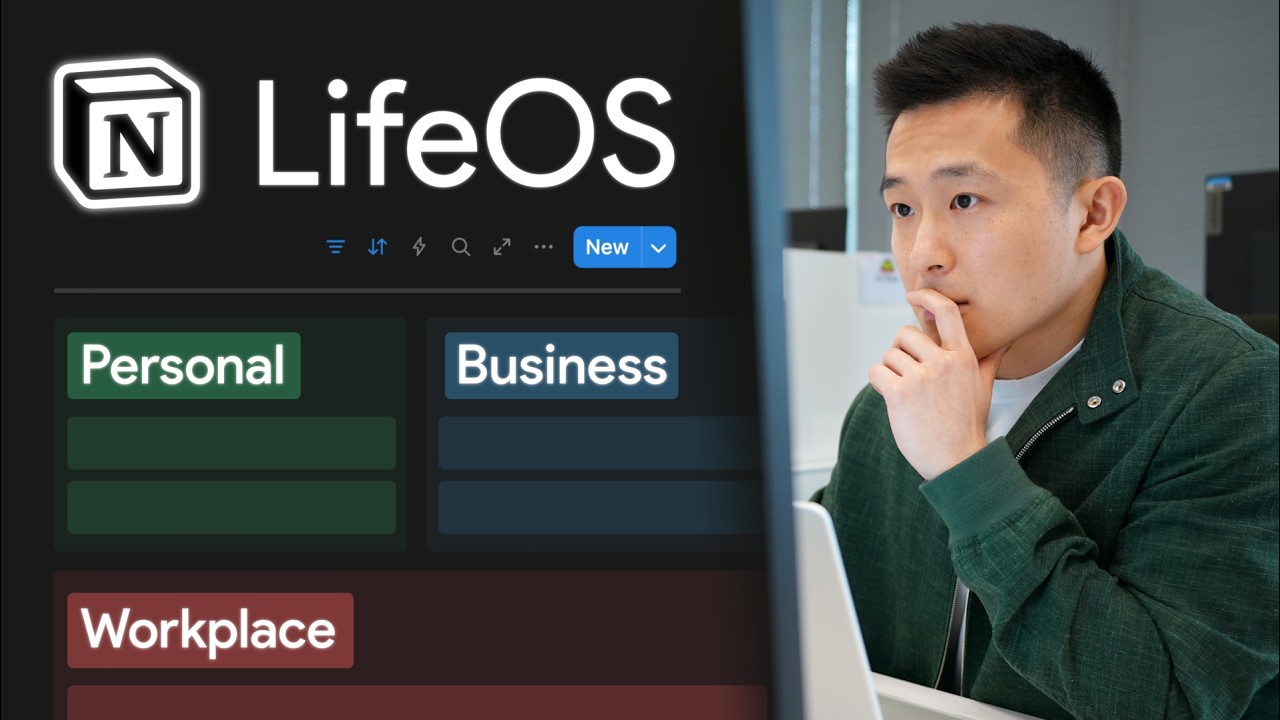
- A personal command center can be constructed by utilizing the relations feature to connect databases for projects, areas, resources, tasks, and notes 0s.
- The relations feature allows for the organization of various life components by linking them to specific categories 0s.
- Within a health-focused area page, it is possible to view associated projects and resources 7s.
- Resources can include specific research, such as information regarding supplements, as well as logs for activities like weekly fasting 14s.
- A course is available for those interested in building their own command center using these methods 23s.