
Core Concepts and Data Management
- Obsidian is a note-taking application designed for users who prioritize low-friction idea capture, the ability to connect ideas through links and backlinks, and the desire to improve thinking and writing within an offline, local-first format 0s.
- The application functions as a vault, which is simply a folder of individual text files stored on a user's computer 35s.
- Notes are saved in Markdown, a future-proof format that allows files to be opened in other applications such as TextEdit, VS Code, Ulysses, or iA Writer, ensuring users retain ownership of their data 45s.
- Users can sync vaults across devices using cloud storage services like Dropbox or through Obsidian Sync, an official paid service that provides end-to-end encryption and version history 1m12s.
- Obsidian is designed with a focus on security, and the company's seven-person team does not track the exact number of installations, though the CEO estimates the user base is between 5 and 10 million 1m25s.
Interface and Navigation
- The interface includes a sidebar for managing notes, where users can create new notes, organize files into folders, sort by criteria like file name or modified time, and use an auto-reveal feature to locate the currently open note 1m35s.
- Navigation tools include a search function for the entire vault, a bookmarking system for important files, and the ability to open notes in new tabs using command-click or control-click 1m55s.
- Tabs can be dragged and dropped to create custom layouts with multiple panels for multitasking 2m15s.
Linking and Graph Visualization
- While Obsidian supports complex features like plugins, themes, metadata, and image embeds, users are encouraged to start with simple notes to avoid the steep learning curve associated with attempting to use all features simultaneously 2m22s.
- Creating a link between notes is accomplished by typing two left brackets, entering the note title, and closing with two right brackets 3m5s.
- Obsidian automatically generates a visual representation of connections in a graph view as notes are created and linked 2m45s.
- Links to non-existent notes appear in search results and the graph view, and these placeholder links can be converted into actual notes by command-clicking or control-clicking on them 3m25s.
- The graph view displays notes as dots, with created notes appearing as darker dots compared to uncreated notes referenced in text 0s.
- The graph view can be closed as a tab and reopened using the ribbon button 7s.
- Graph variables can be adjusted to manage visual complexity as the number of notes increases 15s.
- Highlighting text and typing two left brackets creates a new note and adds a corresponding dot to the graph view 37s.
Settings and Best Practices
- Backlinks for an active note are visible in the bottom right corner, where linked mentions can be expanded or collapsed to view context 45s.
- Enabling "automatically update internal links" in the "Files and Links" settings ensures that links remain functional if a note is renamed 57s.
- Setting a default folder for attachments prevents the sidebar from becoming cluttered with images and documents 1m23s.
- Themes can be managed and installed through the "Appearances" settings menu 1m35s.
- A recommended approach for new users is to start fresh rather than importing large volumes of old notes to avoid clutter 1m55s.
- Users are advised to avoid installing complex plugins like advanced tables, Kanban boards, or Dataview dashboards initially to focus on the core practice of linking 2m8s.
- Over-folderizing knowledge notes is discouraged because standard hierarchies can become brittle; instead, notes should be kept in broad categories until patterns emerge 2m20s.
Formatting and Keyboard Shortcuts
- Learning hotkeys is recommended to increase efficiency and improve the user experience 2m33s.
- Formatting shortcuts include Command+B for bold, Command+I for italics, and using pound symbols for headings 2m45s.
- Text can be modified using two tildas for strikethrough, two equal signs for highlighting, a greater-than sign for quote blocks, and dashes or numbers for lists 2m55s.
- Checklists are created with dashes and brackets, while dividers are made with three lines on an empty line 3m5s.
- Inline code is created with one backtick, and code blocks are created with three backticks 3m8s.
- Notes can be linked using double brackets for internal notes or by placing link text in brackets followed by the URL in parentheses for external sites 0s.
- Keyboard shortcuts for navigation and management include Command-Option-Left/Right to move back or forward, Command-F to find text, Command-T to open a new tab, and Command-W to close a tab 5s.
- Adding an exclamation point before an internal link embeds the note, while an exclamation point before an external link displays the image if the link points to one 15s.
- The command palette, accessed via Command-P, provides access to advanced shortcuts and various application commands 23s.
- The quick switcher, opened with Command-O, allows for rapid searching and opening of notes 33s.
Organizational Strategies
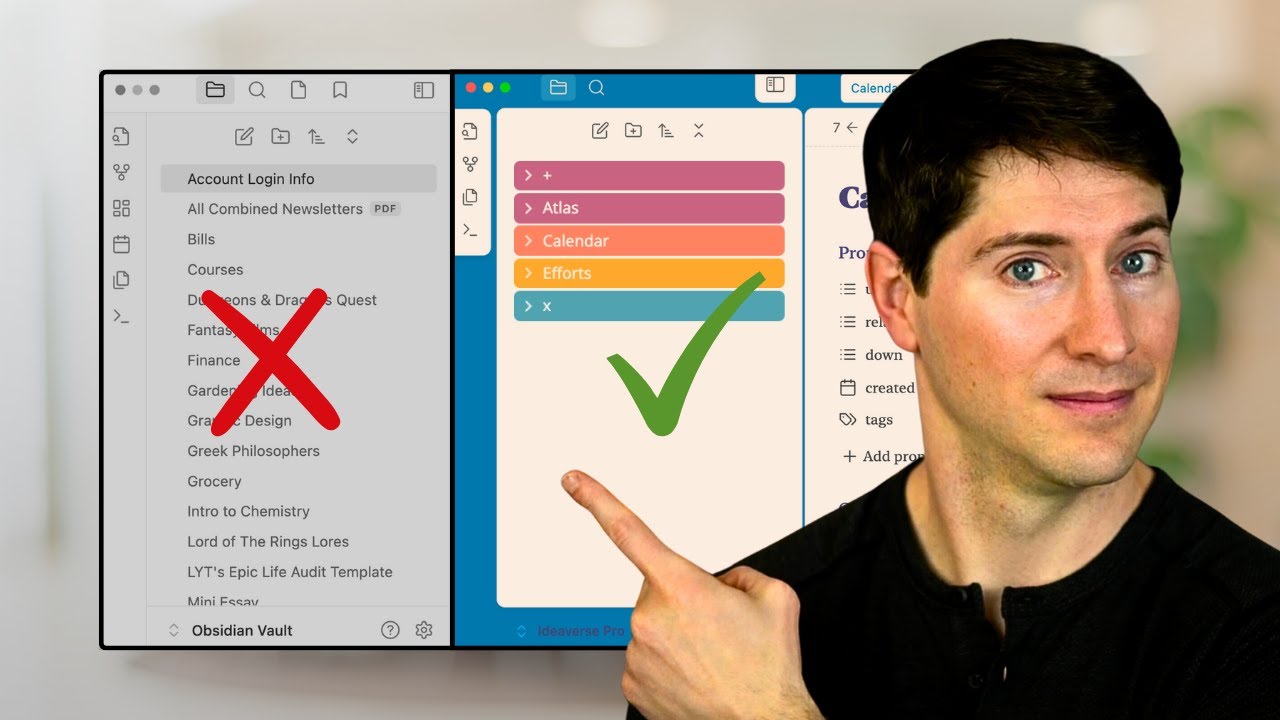
- While notes can be organized into folders in the sidebar, creating too many specific folders can lead to decision fatigue and difficulty in locating notes 38s.
- A recommended organizational strategy involves creating broad, high-level folder categories and building more complex structures only as necessary 53s.
- The "Ideverse" template provides a foundational structure consisting of "Atlas" for timeless knowledge, "Calendar" for time-based notes, and "Efforts" for time-bound projects and tasks 1m5s.
- Notes can be organized using bookmarks, which are accessible via the three-dot menu or the command palette 1m23s.
- Tags, created with the pound key, allow for bundling and filtering notes, though creating "maps of content"—notes that link other notes by topic—is often recommended for creating connective hubs 1m28s.
- Daily notes within a calendar folder structure serve as a method for capturing thoughts on the fly 1m43s.
Advanced Features and Media
- Obsidian supports various media types, including drag-and-drop images, PDFs, audio recordings, embedded YouTube videos, and tweets 1m50s.
- Tables can be inserted via the command palette, and the templates core plugin allows for the creation of reusable note formats 2m3s.
- Properties, such as dates, checkboxes, links, and numbers, can be added to notes using Command-Semicolon to organize data without cluttering the main content 2m12s.
- Obsidian features include "bases" for sorting and updating notes by type, and "canvas," a virtual whiteboard for brainstorming and visual organization 2m23s.
AI Integration and Workflow
- Obsidian does not have built-in AI, allowing users to determine the extent and method of AI integration themselves 2m35s.
- The selection of an AI tool for note-taking should be based on individual privacy requirements and the level of effort one is willing to exert to maintain that privacy 0s.
- Claude is currently utilized to facilitate tasks such as asking questions, interacting with notes, conducting deep research, and automatically populating properties within Obsidian 0s.
- It is recommended to back up all notes before implementing new AI tools or workflows 0s.
- A distinction should be maintained between original thoughts, referred to as the "idea verse," and AI-generated content to ensure Obsidian remains a dedicated space for personal note-taking 0s.
- A free "idea verse" template is available for users to download, which includes a step-by-step guide for establishing a new vault in Obsidian 0s.
- Instructions for installing a specific Obsidian theme are provided in a separate video 0s.