Task Database Setup
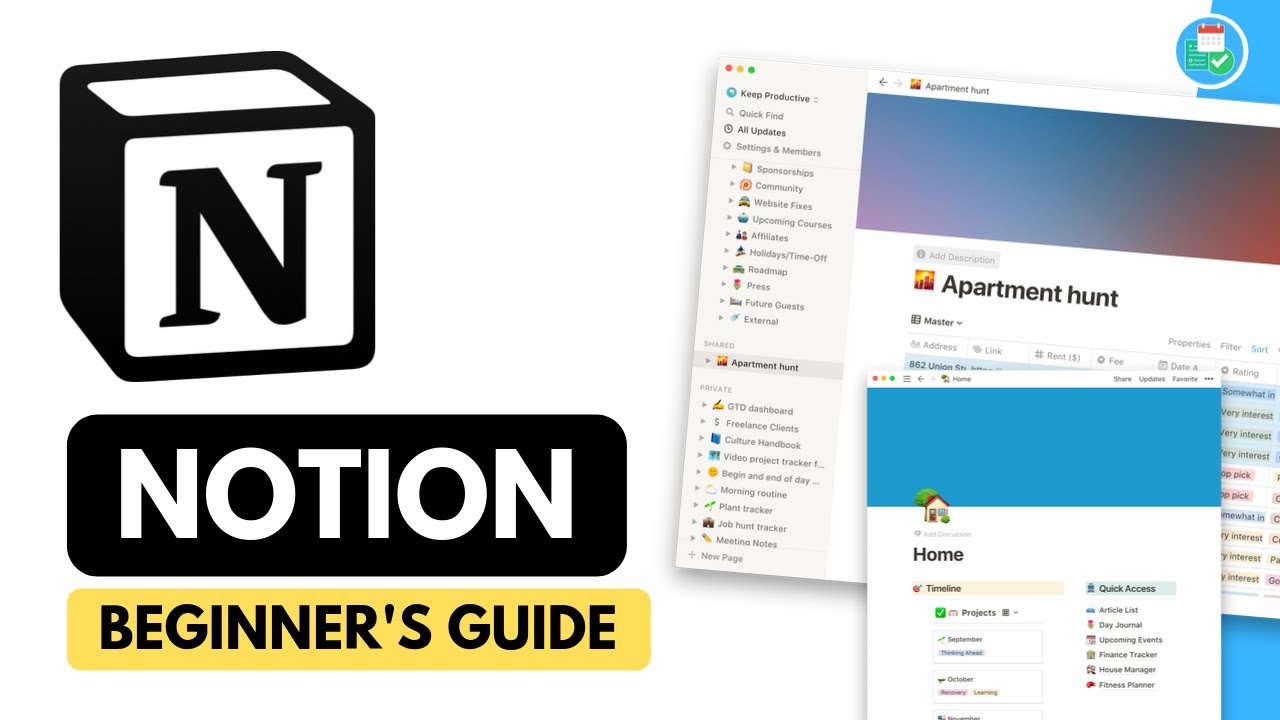
- Khe Hy, the creator of the blog and newsletter Rad Reads and the course "Supercharge your productivity with Notion," presents a tutorial on designing an advanced Getting Things Done (GTD) system within Notion 0s.
- The GTD methodology, originally developed by David Allen, serves as the foundation for the productivity setup being constructed 1m15s.
- The setup begins by creating a task table, which is customized with a specific icon and color for visual organization 1m30s.
- The task table includes a checkbox column to track completion status, with cell wrapping disabled to maintain a clean layout 1m55s.
- A date field is added to the table to track the due dates of individual tasks 2m15s.
- A "Contexts" column is created using a multi-select property to categorize tasks by people, places, things, or energy states, such as high energy or low energy 2m25s.
- A checkbox property is included to designate the priority level of tasks 2m55s.
- A number field is added to the table to estimate the duration required to complete each task 3m5s.
Project Database Integration
- A separate table is required for projects to allow for effective data management and filtering, as adding a project column directly to the task table would limit the ability to analyze the data through the GTD framework 3m20s.
- A project table is created in Notion, featuring a yellow cover and a column designated for project names. 0s
- Two specific projects, "Personal finance" and "Bucket list," are added to the project table, and unnecessary rows are removed. 15s
- A relation is established between the project table and the task table using Notion's advanced features, allowing the two databases to be linked. 35s
- The linked column in the project table is renamed "Tasks linked" and configured to wrap text for better visibility. 55s
- Clicking the linked column reveals the tasks associated with each project, establishing a hierarchy where tasks are rolled up into their respective projects. 1m5s
- Tasks are manually assigned to either the "Personal finance" or "Bucket list" categories within the task table, which automatically updates the project table. 1m25s
Dashboard Configuration
- A new page titled "GTD dashboard" is created, featuring a cube icon and a red color theme. 1m55s
- The dashboard is formatted with a "Due soon" header, a purple background, and small text settings to maximize the display of data. 2m15s
- A linked database is created on the dashboard to mirror the information from the original task table. 2m35s
- A filter is applied to the dashboard's task view to display only items with a due date occurring within the next week. 2m55s
- The dashboard view is intended to be customized by hiding unnecessary columns to focus on relevant task information. 3m5s
- Dashboard views can be customized by modifying properties, such as removing duration or contacts and adding project links to track task associations 0s.
- Views can be duplicated to create specialized task lists, such as filtering by energy level rather than due date, to accommodate personal productivity preferences 25s.
Inbox Management
- The "quick capture" methodology in Getting Things Done (GTD) relies on removing tasks from the inbox once they are assigned to a specific project 1m15s.
- An inbox can be configured by creating a linked database of tasks and applying a filter that only displays items where the project property is empty 1m35s.
- When a project is assigned to a task in the inbox view, the task is automatically hidden from that view while remaining associated with the project in the master database 2m15s.
Project Review System
- The review function in GTD acts as a system to resurface important projects, requiring the addition of specific date-related columns to the project table 2m45s.
- To implement the review function, users add a "Last review" date field and a "Review frequency" number field, which represents the interval in days between reviews 3m5s.
- To manage review cycles for projects, such as personal finance (7 days) or bucket lists (60 days), a "next review" formula is created using the
dateAddfunction in Notion. 0s - The
dateAddformula calculates the next review date by taking the "last review" date, adding the "review frequency" number, and specifying the unit as "days." 25s - An "overdue" status is determined by a formula that compares the current date, generated by the
nowfunction, against the "next review" date. 1m15s - If the current date is greater than the "next review" date, the project is marked as overdue. 1m25s
Review Dashboard Implementation
- A dashboard can be organized by creating a linked database of projects, where unnecessary properties are hidden to streamline the view. 1m40s
- A filter is applied to the project database to display only items where the "overdue" checkbox is active. 2m5s
- When a user updates the "last review" date to the current date, the project automatically disappears from the filtered "overdue" view. 2m20s
System Architecture and Resources
- The complete system architecture consists of a task table for standard management, a project table to establish hierarchy, and a dashboard that utilizes linked databases and filters to create specific perspectives, such as an inbox and a review table. 2m35s
- The GTD dashboard provides a comprehensive overview of the system's functionality. 0s
- The review function serves as a critical component of the GTD methodology. 8s
- Additional information regarding Notion can be accessed through Notion courses. 14s
- Further tutorials are available on the associated YouTube channel linked in the comments section. 18s