6 Best Note-Taking Chrome Extensions in 2026
Most note-taking extensions clip a page into another app and leave you to organize it, so you rarely open it again. The six here differ in the notes you can actually type, what they capture from the tab, and whether those notes still answer a question later. Recall is for your own notes plus saved web sources in a second brain you can chat with. Notion, Evernote, Obsidian, Keep, and OneNote each win a narrower capture job.
Last updated: August 2026
What are the best note-taking Chrome extensions?
The best note-taking Chrome extensions in 2026 are Recall for writing your own notes and combining them with saved web sources in a second brain you can chat with, Notion Web Clipper for turning a page into an editable Notion page you can share, Evernote Web Clipper for markup and full-page capture, Obsidian Web Clipper for highlighted passages as local Markdown, Google Keep for a sticky you type without leaving the tab, and OneNote Web Clipper for region clips and handwritten notebooks.
A note-taking extension is only useful if it matches how you actually take notes. Some people type a journal, a meeting recap, or an idea that did not start on a webpage. Some highlight a paragraph and want that highlight to be the note. Some need a screenshot of a dashboard. Some want every note and every saved article to become context the next time they ask an AI a question.
Be honest about the job:
- You need to type your own notes in the browser. Journals, meeting recaps, checklists, and thoughts that are not a clip of someone else's page.
- You need to capture the tab. A clean article, a highlighted passage, a screenshot, or a region of the screen.
- You need notes and sources in the same place, so a comment still makes sense next month.
- You need to ask the library later. Meeting notes plus the article you saved should answer a question together, not sit in two apps.
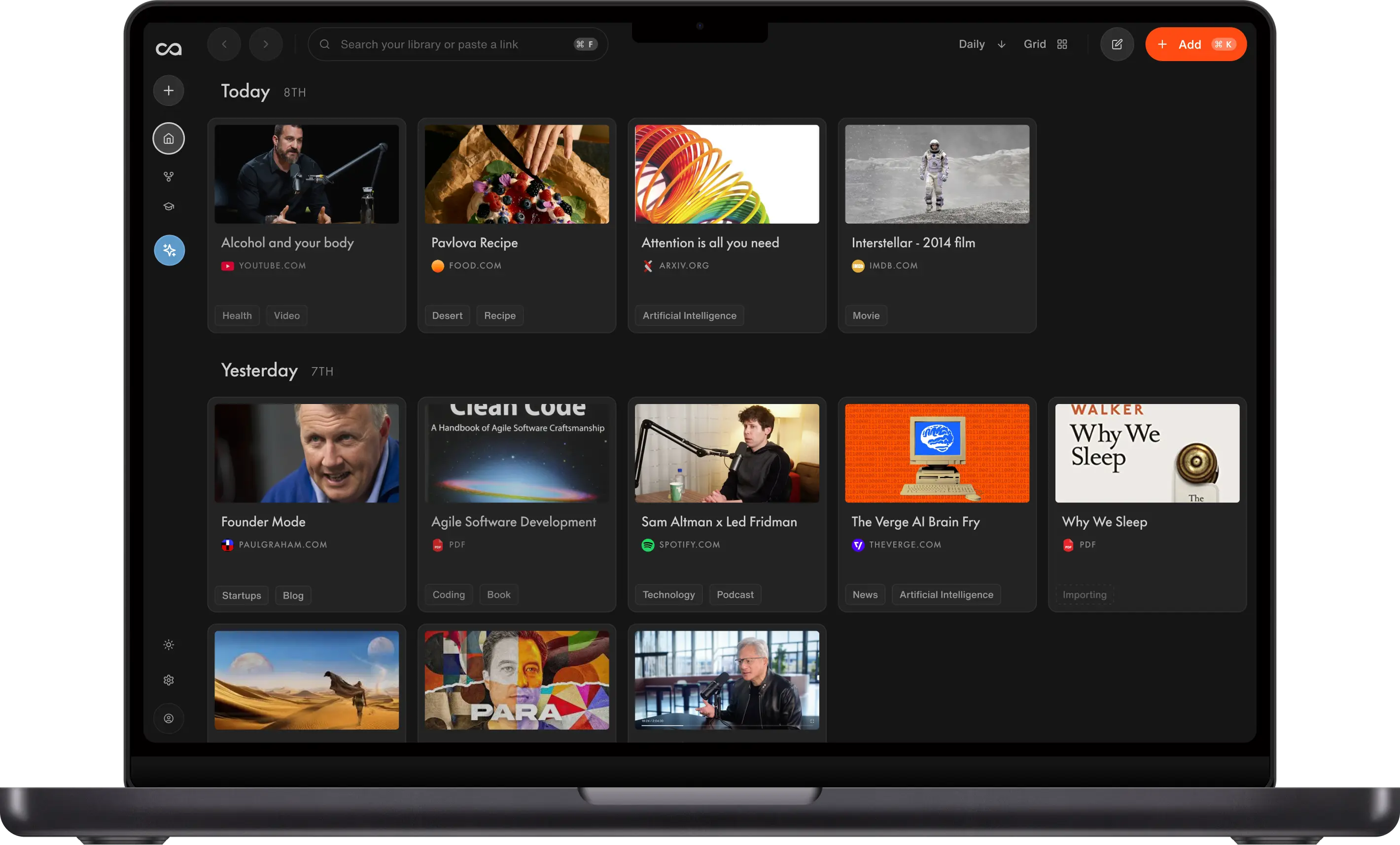
Recall is a personal AI knowledge base, not only a clipper. You can write block-style notes with headings, tables, tasks, and code, either as standalone notes or beside a saved article, video, PDF, or social post. Journals and meeting notes live in the same library as what you clip from the web. Then you chat with all of it, so those notes become context for the AI instead of a folder you never reopen.
The other five win a more specific capture job. Notion's clipper is strong when the clip should become a page you edit and share. Evernote's clipper is still the most complete capture UI. Obsidian's clipper is the one that turns highlights into files you own. Keep is the fastest typed sticky. OneNote is the one for region clips and ink.
What to use when
- Recall if you want to write your own notes, save the web beside them, and chat across both as one second brain.
- Notion Web Clipper if a page should become an editable Notion page you can share, comment on, and drop into a database.
- Evernote Web Clipper if you want markup, screenshots, and full-page capture into a notebook you search later.
- Obsidian Web Clipper if highlighted passages should land as Markdown files on your disk.
- Google Keep if you need to type a sticky without leaving the tab, and you will not need the original page.
- OneNote Web Clipper if you clip a region of the screen into a notebook you also handwrite in.
Get started with Recall for free
See why Recall is the best Chrome extension for saving, summarizing, and chatting with any page. One-click save, an AI summary, and a knowledge base you can still chat with next week.
Best note-taking Chrome extensions compared (2026): ranked by the notes you type, what they capture from the tab, whether you can chat with them later, and the main tradeoff.
| Extension | Best for | Notes you type | What you capture | Ask it later | Main tradeoff |
|---|---|---|---|---|---|
| Recall | Your notes plus the web, as a second brain | Block-style notes, journals, meeting notes, beside the source or on their own | Articles, YouTube, PDFs, social posts, and more | Chat with notes and sources together | Not a team wiki; AI features on the free plan are limited |
| Notion Web Clipper | A clip that becomes a Notion page | After the clip, in Notion's editor | Simplified article, bookmark, or screenshot | Notion AI in the workspace, not from the clipper | You still file every clip; the extension does not take the note for you |
| Evernote Web Clipper | Markup and full-page capture | After the clip, in Evernote | Article, simplified article, full page, or screenshot, with markup | Search, not chat | Strong capture into a notebook that does not answer questions |
| Obsidian Web Clipper | Highlights as files you own | After the clip, in the vault | Selection, highlights, or full page as Markdown | Only if you add chat plugins | You maintain templates, tags, and plugins |
| Google Keep | A sticky you type now | Short notes, lists, reminders | A link, screenshot, or image | No | Fast, and the original page is easy to lose |
| OneNote Web Clipper | Region clips and class notebooks | After the clip, including ink | Full page, region, or article | Search, not chat | Visual notebooks, weaker retrieval |
Scroll horizontally on small screens to see every column.
Related: best AI note taking app · best productivity Chrome extensions · Evernote alternative · Notion alternative
What is a note-taking Chrome extension?
A note-taking Chrome extension lets you write or capture from the current tab without opening a blank notes app and losing the context.
They are not all clippers. The useful split is:
- Typed notes in the tab. Google Keep is a sticky. Recall is a full notebook, including journals and meeting notes that never started as a webpage.
- Capture of the tab. Evernote, Notion, Obsidian, and OneNote clippers each keep a different slice of the page (markup, a Notion page, Markdown highlights, a region).
- Notes plus sources you can ask. Only Recall treats your writing and the saved web as one library the AI can use as context.
Chrome itself is not a notebook. The Google Keep Chrome extension is the default people already have, and it is the right tool for a reminder. It is the wrong tool when next month's question needs the meeting recap, the article, and the comment you wrote beside it.
How to choose a note-taking Chrome extension
Match the extension to the note, not to the brand of notebook you already opened once.
- Do you type, clip, or both? A clipper will not write your journal. A sticky will not keep the article.
- What should the note look like? A short list, a highlighted passage, a screenshot, or a block-style page with headings and tables.
- Do notes and sources stay together? A comment that is not attached to the page is easy to orphan.
- Can you ask it later? Search is not the same as chatting with your meeting notes and the papers you saved.
- Who else needs it? Team wikis and class notebooks are a real reason to clip into Notion or OneNote. That is a sharing job, not a second-brain job.
Best note-taking Chrome extensions in detail
1. Recall
Recall is best for: people who want a second brain in Chrome. Write your own notes, save articles, videos, PDFs, and social posts beside them, and chat with the whole library so journals, meeting notes, and research become context for the AI.
Recall features:
- Your own notes: Journals, meeting recaps, checklists, and ideas that did not start on a webpage
- Block-style editor: Headings, tables, tasks, and code blocks, the same kind of writing surface people expect from a modern notes app. See best AI note taking app
- Notes beside the source: Write on the same card as the article, video, or PDF you saved
- Combine notes and the web: One library for what you typed and what you clipped
- Chat with it: Ask across notes and sources together, so a meeting recap and the paper you saved can answer the same question
- One-click save and summary: Articles, YouTube, podcasts, PDFs, social posts, and notes, filed automatically
Recall pricing: free tier with unlimited saves; Plus from about $10/mo.
Where Recall fits: Most note-taking Chrome extensions either take a sticky or dump a page into another app. Recall is the one that lets you write, save the web, and then use all of it as AI context. It is not a team wiki, and it is not a handwriting notebook. It is the second brain for personal notes that should still work next month.
2. Notion Web Clipper
Notion Web Clipper is best for: turning the current tab into a Notion page you can edit, share, and drop into a database. The value is not "you already use Notion." It is that the clip becomes a real page with Notion's editor, comments, and permissions.
Notion Web Clipper features:
- Clip as a page: Simplified article, bookmark, or screenshot, chosen in the extension
- Destination picker: Send the clip to a specific page or database
- Then you write in Notion: Headings, databases, and comments live in the workspace, not in the clipper itself
- Sharing: Useful when the clip is for a team wiki, not a private library
Notion pricing: free personal plan; Plus and higher add limits and AI. The clipper is free with a Notion account. Verify plans on notion.com.
What the extension actually does: Capture and file. It does not take the meeting note for you, and it does not chat across clips from the toolbar. After the clip lands, Notion's editor is excellent. The gap is the extra filing, and the fact that your own notes and the web are only connected if you keep connecting them.
Notion Web Clipper vs Recall: Choose Notion's clipper when the output should be a shared Notion page in a workspace other people already open. Choose Recall when you want to write the note yourself, keep the source beside it, and ask the library later without building a database. See Notion alternative.
3. Evernote Web Clipper
Evernote Web Clipper is best for: the most complete capture UI still in Chrome. Article, simplified article, full page, or screenshot, with markup before you save. The value is the clipper, not loyalty to Evernote as a brand.
Evernote Web Clipper features:
- Capture modes: Article, simplified article, full page, bookmark, or screenshot
- Markup: Annotate the clip before it lands in a notebook
- Notebook and tags in the popup: File it while you are still on the tab
- Search later: Evernote's job after capture is find-by-keyword, including text in images on paid plans
Evernote pricing: free tier with limits; Personal commonly around $10 to $15/mo. Verify on evernote.com.
What the extension actually does: It is still one of the best tools for grabbing an awkward page (a recipe layout, a paywalled article view, a marked-up screenshot) in one pass. What it does not do is summarize on save or let you chat with the notebook. Your own notes happen in Evernote after the clip, not as a second brain that answers questions.
Evernote vs Recall: Choose Evernote's clipper when capture quality is the whole job, especially screenshots and markup. Choose Recall when the clip should come with a summary, sit next to notes you typed, and remain something you can ask. See Evernote alternative and best Evernote alternatives.
4. Obsidian Web Clipper
Obsidian Web Clipper is best for: turning highlighted passages into Markdown files you own. The value is control. Templates, YAML, and a vault on disk. Not "you already use Obsidian."
Obsidian Web Clipper features:
- Highlighter: Mark the passages that should become the note, instead of dumping the whole DOM
- Templates: Control how a site lands in the vault, including properties
- Markdown on disk: Durable files, not a proprietary blob
- Selection or full page: Capture only what you highlighted, or the article
Obsidian pricing: the app and clipper are free for personal use. Sync and publish are paid. Verify on obsidian.md.
What the extension actually does: It is the best clipper on this list if the note is the highlight, and you want that highlight as a file. Chat, summaries, and automatic organization are not in the extension. Those arrive later, if you add plugins and keep the vault maintained.
Obsidian Web Clipper vs Recall: Choose Obsidian's clipper when local files and highlight-first capture are the point, and you are willing to run the system. Choose Recall when you want to write notes, save the web, and chat across both without templates. See Obsidian alternative.
5. Google Keep
Google Keep is best for: a sticky you type without leaving the tab. The value is speed. Open the popup, write a sentence or a list, close it. No clipper ceremony.
Google Keep features:
- Typed note in a popup: The extension is a notepad, not a page dump
- Lists, colors, and labels: Light organization that matches how people already use Keep
- Reminders: Time or place, which none of the research clippers bother with
- Link, screenshot, or image: Optional extras, not a full-content save
Google Keep pricing: free with a Google account.
What the extension actually does: It is the best tool on this list for a parking-ticket thought, a to-do, or a copied sentence you need in 10 seconds. It is a weak research notebook. The original page is easy to lose, there is no block-style editor, and you cannot chat with the pile.
Google Keep vs Recall: Keep is the right pick for a reminder or a list you will check off today. Recall is the right pick when the note is a journal, a meeting recap, or a comment that only makes sense next to the source, and you will want to ask it later. Many people keep both.
6. OneNote Web Clipper
OneNote Web Clipper is best for: region clips into a notebook you also handwrite in. The value is visual capture plus ink, not "you already have Microsoft 365."
OneNote Web Clipper features:
- Region capture: Grab part of the screen, which matters for dashboards, slides, and problems on the page
- Full page or article: Broader clips when you want the whole tab
- Notebooks and sections: Lands in the same structure as class or work notes
- Ink after the clip: OneNote remains the strongest destination on this list for handwritten pages
OneNote pricing: free with a Microsoft account; Microsoft 365 adds storage and desktop apps. The clipper is free.
What the extension actually does: It is the right clipper when the note is visual or handwritten. Retrieval is weaker than Evernote's search, and there is no chat across clips. Your typed notes happen in OneNote after the clip, not in the extension.
OneNote vs Recall: Choose OneNote's clipper for region captures and ink. Choose Recall when the notes are typed, the sources are articles, videos, and PDFs, and you want to chat across them. See best Evernote alternatives for the wider notebook category.
Bottom line
The best note-taking Chrome extension depends on the note. Install Recall if you want to write your own notes, save the web beside them, and chat with the whole library as a second brain. Use Evernote Web Clipper when capture and markup are the job. Use Obsidian Web Clipper when highlights should become files you own. Use Notion Web Clipper when the clip must become a shared Notion page. Use OneNote Web Clipper for region clips and ink. Keep the Google Keep Chrome extension for stickies you will not need to retrieve.
For the app-level category, see best AI note taking app. For a broader toolbar, see best productivity Chrome extensions.
When Chrome's built-in tools are enough
Stay with bookmarks or a Google Doc when:
- The note is a URL you will open again today
- A short sticky in Keep is enough
- You do not need the source, a real editor, or a way to ask the library later
Add a note-taking Chrome extension when the tab is not the last place you will need the idea, or when the idea never lived on a webpage in the first place.
FAQs
Best note-taking Chrome extensions by use case
How note-taking extensions work
Recall vs other note-taking extensions
See more tools on the Recall comparison hub or the full comparison table.
Ready to get started?
Save, summarize and chat with your content.
No credit card required · 30 Day Refund on Premium · 24 Hour Support