8 Best Productivity Chrome Extensions in 2026, Ranked by Use Case
Most productivity extensions give you a one-off boost that never builds on itself, so next time you start from zero. We ranked 8 by the job they finish and what you still have after you close the tab: Recall for a one-click summary, automatic organization, chat with your content, and a personal AI knowledge base, Claude for an AI agent that reads this tab then clicks, types, and finishes the work on the live site, Grammarly for writing, and Raindrop.io for bookmarks.
Last updated: August 2026
What are the best productivity Chrome extensions?
The best productivity Chrome extensions in 2026 are Recall for a one-click summary, automatic organization, chat with your content, and a personal AI knowledge base (a second brain that still answers next week), Claude for an AI agent that reads this tab then clicks, types, and finishes the work on the live site, Grammarly for writing in the field you are already in, Raindrop.io for bookmark collections you can actually browse, Notion Web Clipper for clipping into a Notion workspace you already run, OneTab for tab overload, 1Password for passwords, and Speechify for listening to pages.
People search for productivity Chrome extensions when the browser is the work surface and the default toolbar is not enough. Common triggers:
- Tab overload: Dozens of articles, docs, and dashboards open "to finish later"
- Lost research: You read something useful and cannot find it a week later
- No reusable context: You want a summary, a place to ask the page a question, and a way to bring that page back into later chats
- Work on this tab: Fill a form, extract a table, or run a multi-step job on the site you are already signed into
- Writing in the browser: Docs, email, and CMS fields need grammar and tone help
- Capture without leaving the tab: Save, clip, or listen without opening another app
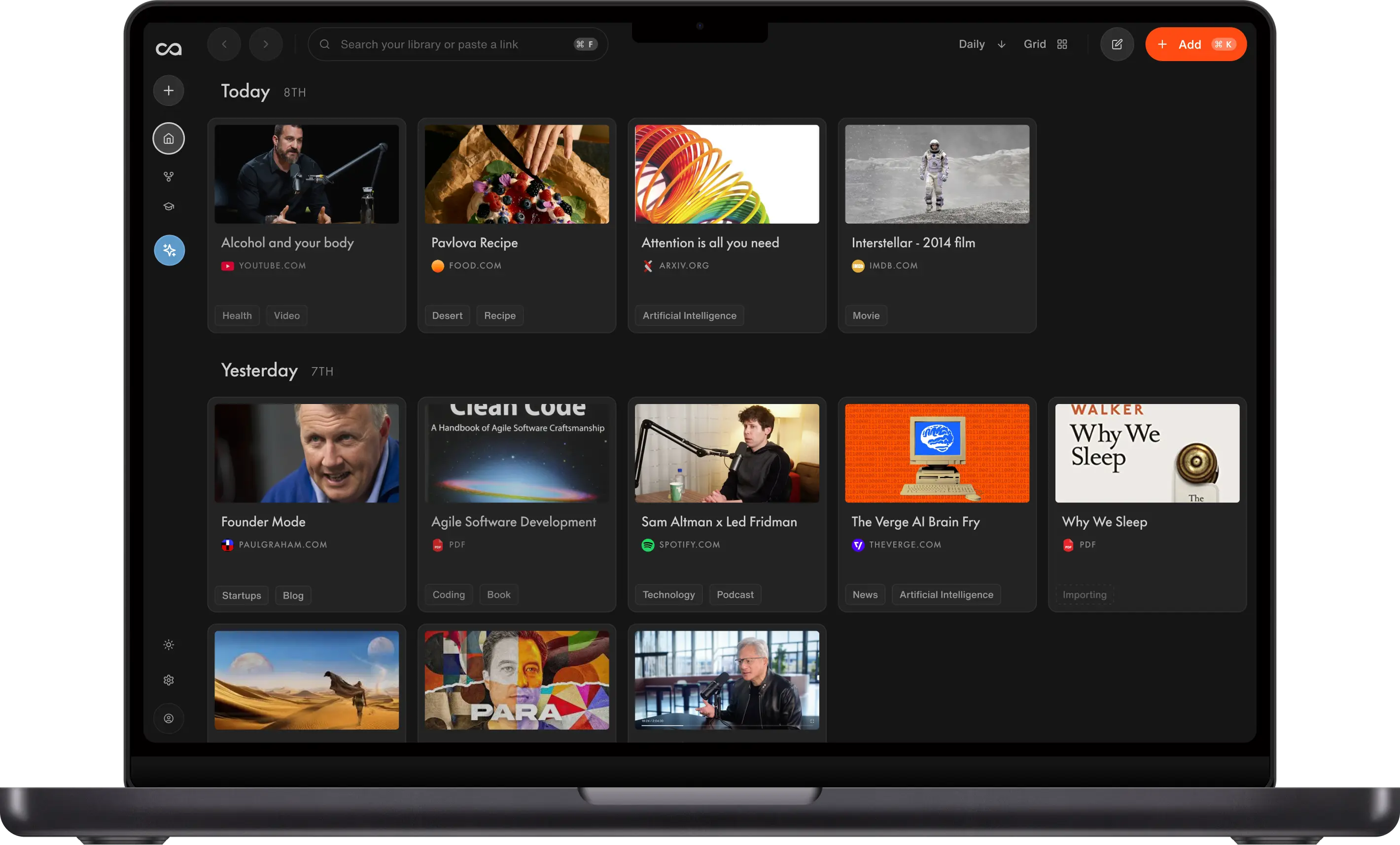
Recall is the extension that makes what you take in compound, not just the articles you read. A YouTube video, a podcast, a PDF, a social post, or a long tab: one click summarizes it, files it, and lets you chat with this source or everything else you have already saved. Claude is the extension that finishes work on the live site: forms, tables, dashboards, and multi-step jobs you would otherwise click through yourself. The rest of the list wins a narrower job: writing in the field you are already in, filing bookmarks, clipping into a workspace you already run, collapsing tabs, passwords, or listening.
What to use when
- Recall if you want a one-click summary of anything you watch, listen to, or read, then automatic organization, chat with that save, and a personal AI knowledge base you can still ask next week.
- Claude if you need an AI agent to read this tab, then click, type, and finish the work on a site you are already signed into: forms, tables, dashboards, and multi-step browser jobs.
- Grammarly if the job is on-page writing: grammar, tone, and rewrites in Gmail, Docs, and the web.
- Raindrop.io if you want nested bookmark collections with covers, highlights, and search.
- Notion Web Clipper if the destination is a Notion database or wiki you already maintain.
- OneTab if you only need to collapse tabs into a list and free memory.
- 1Password if the job is passwords and passkeys, not knowledge.
- Speechify if you want to listen to articles instead of reading them.
Get started with Recall for free
See why Recall is the best Chrome extension for saving, summarizing, and chatting with any page. One-click save, an AI summary, and a knowledge base you can still chat with next week.
Best productivity Chrome extensions compared (2026): ranked by the job they finish, what happens in the tab, what remains after you close it, and the main tradeoff.
| Extension | Best for | In this tab | After you close it | Main tradeoff |
|---|---|---|---|---|
| Recall | A second brain from what you save | One-click summary and chat on articles, YouTube, podcasts, PDFs, and social posts | Full content, organized, in a knowledge base you can still ask | Best for lasting AI context; AI features on the free plan are limited |
| Claude | An agent that finishes work on this site | Clicks, types, fills forms, and extracts tables on the live page | A Cowork session in Claude's apps, not the pages themselves | Paid only; the work happens now and does not become a library |
| Grammarly | Grammar and tone as you type | Inline fixes and rewrites in Gmail, Docs, and CMS fields | A cleaner draft, nothing stored | Fixes this sentence; it never keeps the research |
| Raindrop.io | Bookmark collections | Saves the URL with a cover and optional highlight | Searchable folders of links | You can find the link, not what it said |
| Notion Web Clipper | Clips into a Notion workspace you already run | Sends a simplified page into a chosen database or wiki | The clip, if you keep filing it | You still organize every clip, and you cannot chat across them |
| OneTab | Collapse tabs to free memory | Turns the window into one list | URLs you can reopen | Memory comes back; the articles do not |
| 1Password | Passwords and passkeys | Autofills this login | A vault of credentials | Solves sign-in only |
| Speechify | Listen instead of reading | Reads the page aloud | Nothing you can query | You finish by ear; you cannot ask it later |
Scroll horizontally on small screens to see every column.
Related: Recall AI extension for Chrome · best AI Chrome extensions · best note-taking Chrome extensions · best Firefox extensions
What is a productivity Chrome extension?
A productivity Chrome extension is a browser add-on that removes friction from work you already do in Chrome: reading, writing, saving, switching tasks, or signing in. The best ones sit on the current page instead of sending you to another app.
In 2026 the useful category is not "more toolbar icons." It is extensions that either:
- Help the tab you are in (summarize this page, fill this form, extract this table, rewrite this paragraph, read it aloud)
- Keep the work after you close the tab (full-content save, a knowledge base, bookmarks)
- Protect the session (passwords, fewer open tabs)
Chrome extensions for productivity fail when they only store a URL. A link list looks organized and still cannot answer "what did I save about this?" Recall is built for that second job: one-click summary, automatic organization, chat with your content, and a personal AI knowledge base. Claude is built for the first job when "help the tab" means operating it, not keeping it.
How to choose a productivity Chrome extension
Match the extension to the bottleneck, not to a generic "best" list.
- Keep the page vs finish the work on it: Do you need a summary, chat, and a save you can ask later, or do you need an agent to click, type, and complete a job on the live site?
- Save format: URL only, screenshot, or full content you can search later?
- Destination: A knowledge base, Notion, a bookmark folder, or a session that dies when you close the tab?
- Writing vs reading: Grammar tools and clippers solve different hours of the day.
- Tabs: Collapsing tabs is not the same as remembering what was in them.
- Security: Password managers belong in every stack; they do not replace a research extension.
Install two or three that do not overlap. A common stack is 1Password + Grammarly + Recall. Add Claude when the leftover job is finishing work on the live site, not keeping the page.
Best productivity Chrome extensions in detail
1. Recall
Recall is best for: people who want a one-click summary of anything they watch, listen to, or read, automatic organization, chat with that save, and a personal AI knowledge base those saves go into (a second brain you can still ask next week).
Recall features:
- One-click summary: Save the article, YouTube video, PDF, or podcast in front of you and get the gist without rereading the tab later
- Automatic organization: Tags and connections without a filing session
- Chat with the page: Ask this tab a question in a panel over Chrome
- Bring in your knowledge base: Add saved sources as context, so the answer uses what you already kept, not only this page
- Model choice: Use ChatGPT, Claude, or Gemini on top of the same library
- Full-content save: Articles, YouTube, podcasts, PDFs, social posts, and notes, not only the URL
Recall pricing: free tier with unlimited saves; Plus from about $10/mo.
What you get now: A summary and chat on this article, video, PDF, or podcast, plus tags and connections without a filing session.
What you still have later: A second brain. Yesterday's tabs become context for today's questions. Tradeoff: AI features on the free plan are limited. It is not a grammar checker, a form-filler, or a password manager.
Where Recall fits: Most productivity Chrome extensions help one task and leave you to start over. Recall makes the page useful now and still useful next week.
2. Claude
Claude is best for: people who want the official Claude in Chrome extension to read this tab, then click, type, and finish the work on a site they are already signed into: forms, tables, dashboards, vendor portals, and multi-step browser jobs.
Claude features:
- Read the live tab: Claude sees the page in front of you, including dashboards, admin tools, and vendor portals that have no API
- Click, type, and fill: Complete forms, walk multi-step flows, and operate the UI with your existing logins
- Extract from this page: Pull tables, lists, and details off the screen instead of copy-pasting
- Multi-tab jobs: Run a task across tabs, then continue the same Cowork session in Claude's apps
- Developer loop: Read console errors and DOM state when you are testing a site
- You stay in control: Pre-approve actions; Claude still asks before irreversible steps
Claude pricing: included with paid Claude plans (Pro, Max, Team, and Enterprise). There is no free extension-only tier. Verify current access on claude.com/claude-for-chrome.
What you get now: The work on this tab gets done: a form submitted, a table extracted, a dashboard walked, a multi-step job finished.
What you still have later: A Cowork session you can continue on desktop, web, or mobile. Tradeoff: it is paid and session-based. It does the work now. It does not become a second brain, and it is not a grammar checker.
Claude vs Recall: Claude wins when the job is to finish work on the live site. Recall wins when the job is a one-click summary, automatic organization, chat with your content, and a knowledge base you still have next week. Using Claude as a model inside Recall is not the same as installing this extension. See Using Recall and Claude together.
3. Grammarly
Grammarly is best for: people who write in the browser all day and want grammar, tone, and rewrites in the field they are already typing, without pasting into another app.
Grammarly features:
- Grammar and spelling: Inline fixes as you type in Gmail, Docs, LinkedIn, and almost any text field
- Tone and clarity: Rewrite suggestions matched to the audience
- Generative drafts: Help starting, shortening, or restating a paragraph
- Wide site coverage: Works where you already write, so the habit sticks
Grammarly pricing: free grammar checks; Pro typically from about $12/mo. Verify current plans on grammarly.com.
What it captures: The text you are writing, not the pages you read.
How work compounds: Cleaner writing in the moment, and better habits over time. Tradeoff: it makes this draft better, but it never stores the research that informed it.
Grammarly vs Recall: Grammarly wins in the field you are already typing. Recall wins while you read, research, and draft from sources you saved. They overlap on "rewrite this paragraph." They do not replace each other. See Using Recall and Grammarly together.
4. Raindrop.io
Raindrop.io is best for: people who want classic bookmark management from Chrome, with nested collections, covers, highlights, and search that Chrome's built-in bookmarks never quite deliver.
Raindrop.io features:
- Collections and nested folders: A familiar hierarchy you can actually browse later
- Highlights and previews: More context than a bare URL
- Stella AI (Pro): Semantic search and organization helpers
- Cross-platform apps: Web, desktop, and mobile, so the same collections follow you
Raindrop.io pricing: generous free tier; Pro from about $3/mo.
What it captures: Links, covers, and highlights.
How work compounds: Collections get more useful as you file and search. Tradeoff: it is excellent at filing links, but a bookmark still cannot tell you what the page said.
Raindrop vs Recall: If you want a well-organized library of links with covers, highlights, and search, Raindrop does that better and cheaper than Recall. Recall is the better choice only when a bookmark is not enough, when you want the page's content, a summary, and the ability to ask it questions months later. See best AI bookmark managers.
5. Notion Web Clipper
Notion Web Clipper is best for: people who already live in Notion and want a one-click clip into a page or database they already maintain, including shared team wikis.
Notion Web Clipper features:
- Clip to a workspace: Save the page into a chosen Notion destination
- Simplified article view: Cleaner than a raw dump of the DOM
- Database properties: File clips into existing Notion structure
- Team sharing: Useful when the clip is for a shared wiki, not a private library
Notion pricing: free personal plan; Plus and higher add limits and AI. The clipper is free with a Notion account. Verify plans on notion.com.
What it captures: Pages and simplified articles into Notion.
How work compounds: Whatever structure you keep filing into. Tradeoff: perfect if Notion is the system of record, but you still organize every clip, and you cannot chat across them.
Notion Web Clipper vs Recall: Use Notion's clipper if the system of record is Notion. Use Recall if you want summaries and chat without building a database first. See Notion alternative.
6. OneTab
OneTab is best for: people whose Chrome window is a pile of "finish later" tabs and who need to collapse that mess into a restorable list so the browser uses less memory.
OneTab features:
- One-click collapse: Turn open tabs into a single list
- Restore later: Open one tab or the whole set
- Share lists: Send a set of links
- Lightweight: Does one job and stays out of the way
OneTab pricing: free.
What it captures: Tab URLs, not page content.
How work compounds: A restorable list. Tradeoff: it frees memory instantly, but the list is URLs, not the articles you meant to finish.
OneTab vs Recall: If the problem is a window with fifty open tabs eating memory, OneTab fixes that in one click and Recall is not the tool for it. They work well together, though. Use OneTab to clear the window, and save the handful of tabs that actually mattered into Recall so the content survives, not just the link.
7. 1Password
1Password is best for: people who sign into many tools and want passwords, passkeys, and form fill without reusing credentials or trusting Chrome's built-in manager alone.
1Password features:
- Autofill: Logins in Chrome without hunting through a notes app
- Passkeys: Modern sign-in support
- Vaults: Personal and shared secrets
- Watchtower: Alerts on weak or breached passwords
1Password pricing: individual plans typically from about $3 to $5/mo; family and business plans cost more. Verify current pricing on 1password.com.
What it captures: Credentials, not articles.
How work compounds: Faster, safer access to every tool. Tradeoff: it is essential for sign-in, and it does not help you read, write, or remember research.
1Password vs Recall: Every serious Chrome setup should include a password manager. It does not compete with Recall. Install both.
8. Speechify
Speechify is best for: people who want to finish articles, docs, and PDFs by ear when they cannot sit and read.
Speechify features:
- Text-to-speech in Chrome: Listen to the current page
- Natural voices: Easier to follow than robotic TTS
- Speed controls: Skim or slow down
- Docs and PDFs: Beyond plain articles
Speechify pricing: free tier; Premium commonly around $10 to $12/mo. Verify current plans on speechify.com.
What it captures: Text for audio playback, not a reusable knowledge library.
How work compounds: You finish more pages by listening. Tradeoff: listening is not a library you can query later.
Speechify vs Recall: If the bottleneck is finding time to sit and read, Speechify is the better tool and Recall does not replace it. They overlap only when you also want to keep what you listened to, so save the page in Recall and let Speechify read it aloud.
Using Recall and Claude together
Recall and Claude in Chrome can look like the same product if you only see "AI on this tab." They are not.
Recall keeps the page. Claude finishes work on the page. Recall gives you a one-click summary, automatic organization, chat with your content, and a personal AI knowledge base you can ask next week. Claude reads the live tab, then clicks, types, fills forms, extracts tables, and can continue that job as a Cowork session in Anthropic's apps. One builds a second brain you own. The other does work in someone else's interface.
Do not confuse the two Claudes. Choosing Claude as the model inside Recall is not the same as installing this extension. The model writes from your library. The extension acts on the site you are looking at.
A stack that compounds:
- Save the pages, dashboards, and briefs that matter in Recall, so the research still exists after the tab closes.
- When the job is to do something on the live site (extract a table, fill a form, walk a vendor portal), use Claude.
- If the result is worth keeping, save it back into Recall so the next chat is not starting from a closed tab.
Skip Claude if you only need a summary, a save, or a draft from sources you already kept. Skip using Claude as a knowledge base. It will not remember last month's tabs the way Recall does. See best AI Chrome extensions if the question is which AI sidebar to pin.
Using Recall and Grammarly together
Recall and Grammarly are the two extensions on this list that most people should keep at the same time. They look similar if you only compare "AI that helps you write." They are not the same job.
Recall is where the substance comes from. Save the pages, briefs, and examples you actually trust, then chat with that library when you need a draft: an outline, an SEO or AEO page that follows how you already write, or a rewrite that pulls from your own notes instead of a generic model. The point is not a prettier sentence. It is a draft grounded in what you have already read and thought.
Grammarly is where the sentence gets finished. It sits in Gmail, Docs, and the CMS field, and it is better at tone, grammar, and last-pass clarity than a knowledge base will ever be. Recall does not watch the text field you are typing in. Grammarly does not remember the research that informed the draft.
A stack that compounds:
- Save the sources and notes in Recall while you research.
- Ask Recall for the draft, using the library as context (including SEO and AEO structure if that is the job).
- Paste into the doc or CMS, then let Grammarly fix tone and grammar in place.
We walk through that research-and-writing loop in this video on using Recall for research and writing.
Skip Grammarly if you already write and revise inside Recall and you never publish from a text field. Keep Grammarly if the last mile is email, Docs, or a CMS. Do not uninstall Grammarly on the promise that a knowledge base will catch "their" vs "there" in a Google Doc.
Bottom line
Match the best productivity Chrome extensions to the job. Install Recall if you want a one-click summary, automatic organization, chat with your content, and a personal AI knowledge base. Add Claude when you need an AI agent to read this tab, then click, type, and finish the work on the live site. Add Grammarly for writing, 1Password for logins, and then pick Raindrop, Notion Web Clipper, OneTab, or Speechify for the leftover job.
If you mainly want AI in the toolbar, continue to best AI Chrome extensions. If the job is finishing articles, see best Chrome extensions for reading.
When a default Chrome toolbar is enough
Skip extra extensions when:
- You rarely leave tabs open overnight
- Chrome's built-in bookmarks are enough
- You do not need summaries, page chat, or a library
Add a productivity Chrome extension when closed tabs still contain work you will need next week.
FAQs
Best productivity Chrome extensions by use case
Chrome extension safety and performance
What is a productivity Chrome extension
Recall vs other productivity Chrome extensions
See more tools on the Recall comparison hub or the full comparison table.
Ready to get started?
Save, summarize and chat with your content.
No credit card required · 30 Day Refund on Premium · 24 Hour Support