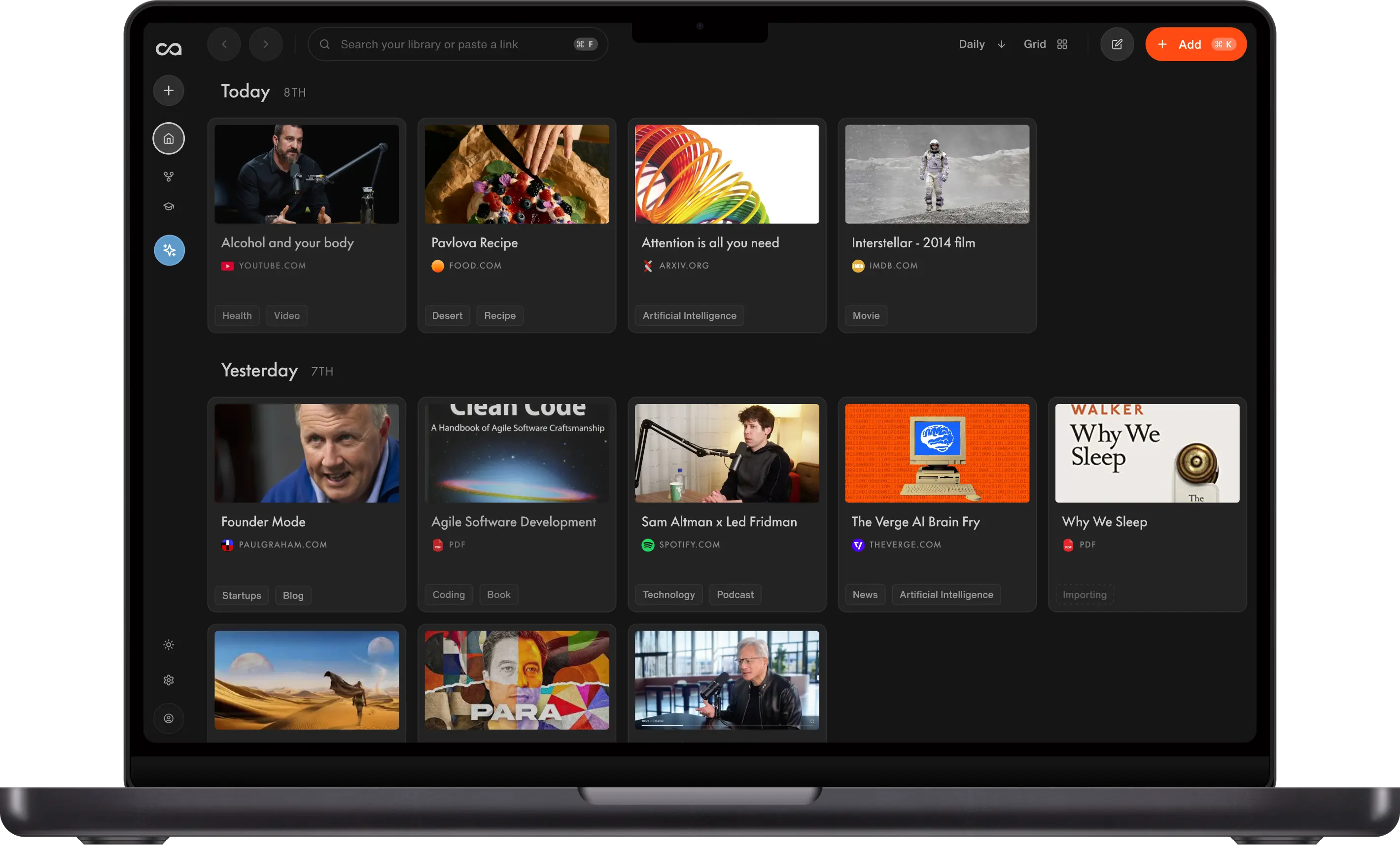
The PARA method organizes your notes into Projects, Areas, Resources and Archives by how actionable they are. Recall, an AI second brain, can do that sorting for you, and one long-time user says it gets it right about 98% of the time.
The PARA method is a system for organizing your notes into four buckets called Projects, Areas, Resources and Archives. You sort everything you save by how actionable it is, not by topic. The hard part is doing that sorting by hand every time you save something. An AI second brain like Recall can do the organizing for you. Make the four buckets tags, and Recall's auto-tagging files each new article, video or note under one of them. It isn't fully hands-off. Recall reuses the tags you already have, and when nothing fits it creates a new topic tag, so a quick tidy every so often keeps everything inside the four buckets.
Table of contents
- What is the PARA method?
- The PARA method in an AI second brain: watch a power user's setup
- Setting up the PARA method in Recall
- How to build a second brain with PARA, step by step
- PARA method examples from a real AI second brain
- Why actionability beats topics when you organize notes
- Projects, Areas, Resources and Archives: what each category holds
- Where PARA fits in the CODE method and personal knowledge management
- Common PARA method mistakes
- FAQs
What is the PARA method?
The PARA method, also called the PARA system, organizes digital information into four categories, ordered from what you will use today to what you are keeping for later. Tiago Forte created it as a core part of Building a Second Brain, and later gave it a book of its own, The PARA Method. His own write-up is The PARA Method on Forte Labs, and his team's three-week test of Recall is in how Tiago Forte's team uses Recall.
The examples below come from Michael Leone, the Recall power user in the video further down.
| Category | What it holds | When you use it | Michael's example |
|---|---|---|---|
| Projects | Short-term efforts with a goal and a deadline | You are working on it now | Preparing a keynote on conflict |
| Areas | Ongoing responsibilities with a standard to maintain | It never really finishes | Running leadership training at work |
| Resources | Topics and reference material you might use later | Interesting, not currently required | Coaching and leadership material for future workshops |
| Archives | Inactive items from the other three | Done, paused, or no longer relevant | A finished project he no longer needs |
Four top-level categories are enough, because the decision at the moment of saving is simple: how soon will I use this? Numbering them 1 to 4 keeps that order visible, and Michael does exactly that in Recall.
The PARA method in an AI second brain: watch a power user's setup
Michael Leone runs employee experience at a US credit union, gives keynote talks, and has organized his notes with PARA for years. A coworker in IT recommended Building a Second Brain, and he now uses the same system on his MacBook, in other apps and in Recall. In this interview with Nicole from the Recall team, he shows his tag tree and then builds research for a talk on conflict from scratch.
Jump to a chapter:
- 3:21 Telling an Area apart from a Resource
- 9:42 How often auto-tagging gets it right
- 10:57 Nested tags vs flat tags
- 13:30 Why there is no Archive in his Recall
- 15:14 Researching a keynote on conflict
- 29:19 A second brain in 10 minutes
Setting up the PARA method in Recall
Notion, Obsidian, Evernote, and OneNote can store the four names as folders, notebooks or pages. Recall fits when you also want new saves filed for you and want to ask questions across a project, the outcome you wrote down, and a skill file for how the work should be done. A comparison of five apps is in 5 Best Apps for the PARA Method.
Nested or flat PARA tags
Recall gives you two ways to model PARA with tags, and the choice decides how much filing auto-tagging can do for you. Both are shown in the video at 10:57.
| Nested tags | Flat tags | |
|---|---|---|
| How it looks | Four parent tags, with each topic tucked under one of them | Topic tags stay as they are, plus four separate PARA tags |
| Example | Leadership sits inside Areas | A card carries both Leadership and Area |
| Auto-tagging | Files the card into its PARA bucket in one step | Adds the topic tag, and you add the PARA tag by hand |
| When it ships | Move the nested tag under Archives | Remove the Projects tag and add Archives |
| Best for | A tidy tree you can browse bucket by bucket, or starting fresh | A library that already has tags, or topics that switch buckets |
Michael uses nested tags and numbers the parents, so his leadership topic lives at 2 - area / leadership. The flat setup is more flexible, but Recall's auto-tagging adds a single tag to each card, so there the PARA tag is always yours to add. Auto-tagging and AI chat come with Recall Plus. On the free plan you build the same PARA tags and file each save yourself.
Give each project a goal and a skill
The project tag gathers the materials. Two notes you write yourself tell the AI what those materials are for.
Write the goal as its own note. In Add, choose Note, and write the outcome in your own words: who it is for, what done looks like, and the deadline. Tag it with the project. Name the note so you can find it, for example "Conflict keynote goal."
Keep a skill file for that project. A skill file is a markdown note of how you want the work done: the voice, the steps, the constraints, and what to check before you call it finished. Write it in Recall, or keep a folder of skill files in markdown and import them. On Plus, Bulk import under Add takes a zip of up to 10,000 notes and attachments, including Obsidian and Notion exports, and turns its folders into nested tags. Tag the skill file with the same project as the goal.
In Recall Chat, reference all three. Type @, then add the project tag, the goal note, and the skill file. The tag brings the sources, the goal says what you are finishing, and the skill file says how. Ask for the outline or the draft from that context, then write it in the Recall notebook next to its sources. The chat guide shows how @ pins a card or a tag.
The same notes travel to Claude, or any other AI, over MCP. In Recall, open Settings, then API & MCP, and connect the client. Claude, Cursor, and ChatGPT can search your cards and read a specific one. Ask the assistant to read the goal and the skill file, then work from the project tag. The connection is read-only, so your library stays the source of truth. Setup is in the MCP guide.
How to build a second brain with PARA, step by step
Create the four PARA tags, then start with one live project rather than importing everything at once. That was Michael's answer when asked how he would build a second brain in ten minutes (29:19). Bringing a whole library in on day one is how people burn out on a new tool. As he puts it, "Start with one thing."
Pick nested or flat tags. You need one project that already has a deadline.
Step 1: Mark one live project
For nested tags, create the project under Projects. For flat tags, add Projects to the cards you will use, and leave their current tags in place.
Step 2: Write the goal and a skill file
Write a note with the outcome and deadline, and a skill file with how the work should be done, then tag both with the project.
Give each project a goal and a skill shows what goes in each.
Step 3: Save any missing sources
Clip articles, videos, podcasts, and PDFs into Recall with the AI extension. Setup is in the Add Content guide.
Step 4: Chat across the project, the goal, and the skill
In Recall Chat, type @ and add the project tag, the goal note, and the skill file, then ask for an outline or a draft. In Claude, ask it to read the goal and the skill file over MCP and work from the project tag.
Step 5: Move the project when it ships
With nested tags, move the project under Archives, or under Resources if you will reuse it. With flat tags, swap Projects for Archives.
If you also link individual ideas across projects, the Zettelkasten method covers that second question. PARA tells you where something belongs. Zettelkasten tells you which idea it connects to.
PARA method examples from a real AI second brain
Keep one structure in every tool
Michael's Projects folder on his Mac, his Projects tag in Recall and his buckets in other apps all match. "I have a projects folder in Recall. I have a projects folder on my Mac," he says (6:49). Whatever app he opens, he already knows where to look.
Give every topic a single home so auto-tagging can file it
Auto-tagging in Recall reads each save, picks out its main topic and files it under the closest tag you already have. It creates a new tag only when nothing fits. Michael's rule is that a topic lives in one branch only. Because his leadership tag exists only under Areas, a leadership clip has exactly one place to go, whether it came from YouTube, Reddit or a journal. "I would say 98% of the time, Recall knows what I'm thinking or where it needs to go," he says (9:42). When it misses, "I fix it. That takes two seconds."
Decide whether you need Archives at all
Michael dropped Archives in Recall on purpose (13:30). He finds old material by searching and chatting, so tucking it away in an archive only made it harder to reach. Finished projects go to Resources instead. He does keep an Archive on his Mac, because there he navigates by opening folders.
The cost is a Resources bucket that keeps growing. If you browse your tags more than you ask questions, keep an Archive for finished things like a kitchen remodel or last year's holiday menu.
How to organize research notes for one project
The keynote example in the video (15:14) runs from first search to outline.
- Save a source. He found a YouTube video on resolving conflict and saved it with the Recall AI extension. Auto-tagging put it under
3 - resource / conflict. - Start the Project. He added a new tag for the talk,
project/conflict keynote. - Ask one tag, not the whole library. He pointed Recall chat at his conflict tag and asked for fresh angles on handling conflict.
- Keep what sparks an idea. One answer explained amygdala hijack, and he saved it as a card in the project. A follow-up asking for a fun fact noted that the amygdala is roughly almond-sized. That gave him a hook he had never considered, an almond on every table before the talk starts.
From there he moves on to outlining and rehearsing. The same tags help with writer's block, too. He scopes chat to an Area such as leadership and asks for two or three ideas to write about (8:57).
Why actionability beats topics when you organize notes
Actionability means filing something by the outcome it serves, not by the school subject it reminds you of. Most of us learned to organize notes by topic: History, Marketing, Ideas, Health. That works when a teacher tells you what the test covers. It works poorly when you sit down on a Tuesday to finish a specific piece of work and the notes you need are scattered across a dozen broad folders.
Tiago's alternative is to organize by the projects and goals you are committed to right now, so when you open a project, everything for that outcome is already together.
The practical test, each time you save something:
- Am I using this for a project with a deadline? Put it in that project.
- If not, does it support an ongoing responsibility? Put it in that area.
- If not, might I want it later? Put it in resources.
- If the project, area, or topic is no longer active, move it to archives.
That order is the whole method. The folders are just the place the decision lands.
Projects, Areas, Resources and Archives: what each category holds
Start with only the projects, areas, and resources that are alive this month. You can add more later.
Projects
A project has a specific outcome and a deadline, and holds everything needed to finish it: the brief, the research, the outline, the draft. Planning a trip is a project. "Marketing" is not, because it never ends. Michael's conflict keynote holds the video he started from, the chat answers he saved, and his outline.
Areas
An area is an ongoing responsibility with a standard you maintain, such as health, finances or the team you manage. It has no finish line, so break it into projects you can close. "Content" is an area, each article is a project inside it, and when the article ships the area stays.
Resources
Resources are topics you are interested in and reference material you are not using yet, such as interview technique or talks you admired. This is where a read-it-later pile lives, kept out of Projects so it does not pretend to be work. When a resource becomes the thing you are doing, move it.
Area or Resource? A simple test
Ask whether you would be accountable if it slipped. If yes, it belongs in Areas. If you would only miss it as a reference, it belongs in Resources. Michael draws the line with his own job (3:21): "Leadership training might be an area, but leadership and coaching and leadership development would be a resource."
Categories are not permanent. When Michael took on employee experience, it was a Project because he was still working out what the role involved. Once it became part of his everyday job, he moved it to Areas.
Archives
Archives hold anything from the other three that is no longer active, mostly finished projects. It keeps the workspace quiet while the material stays searchable. In an AI second brain you may not need it at all, as Michael explains.
Where PARA fits in the CODE method and personal knowledge management
PARA is the organizing system inside Tiago's CODE method. CODE is the broader Building a Second Brain workflow, a personal knowledge management system in four steps: Capture, Organize, Distill, Express. PARA is how the Organize step decides where a captured note lives.
- Capture is getting the thing out of your head or your browser. In Recall that is the AI extension, mobile quick capture, or a bulk import.
- Organize is the PARA decision: project, area, resource, or archive. In Recall, auto-tagging makes the first pass.
- Distill is keeping the part you will reuse. A summary you can edit, plus your own notes on the card, is that pass.
- Express is the outcome: the draft, the brief, or the piece you publish.
If Organize is missing, Capture becomes a pile. If Express is missing, the four folders are a hobby. The CODE method and the PARA method are sequential, not competing systems.
Common PARA method mistakes
The usual failure is a system that looks organized and still cannot tell you what to do next.
Treating areas as projects. "Hiring" never finishes, so filed as a project it never leaves your Projects list. Break each area into projects you can close.
Filing by topic. A Marketing folder mixes the campaign due Friday with a talk you saved in 2022. Put the campaign in its project and leave the talk in Resources.
Leaving finished work in Projects. The list only helps if it gets shorter. Move finished work to Archives, or to Resources if you will reuse it.
Organizing instead of doing the work. New tags feel like progress. If you are renaming folders for the third time this week, the method is already set up.
A different system in every app. Use the same four names everywhere, as Michael does in Keep one structure in every tool.
Install the Recall browser extension
One click saves any page with an instant AI summary, automatic tags, the original transcript, connections to related cards, and a fully editable notebook synced to your knowledge base.
FAQs about the PARA method
Ready to get started?
Save, summarize and chat with your content.
No credit card required · 30 Day Refund on Premium · 24 Hour Support